34-Inch Gaming Monitors: Your Complete Guide to Ultrawide Gaming in 2026
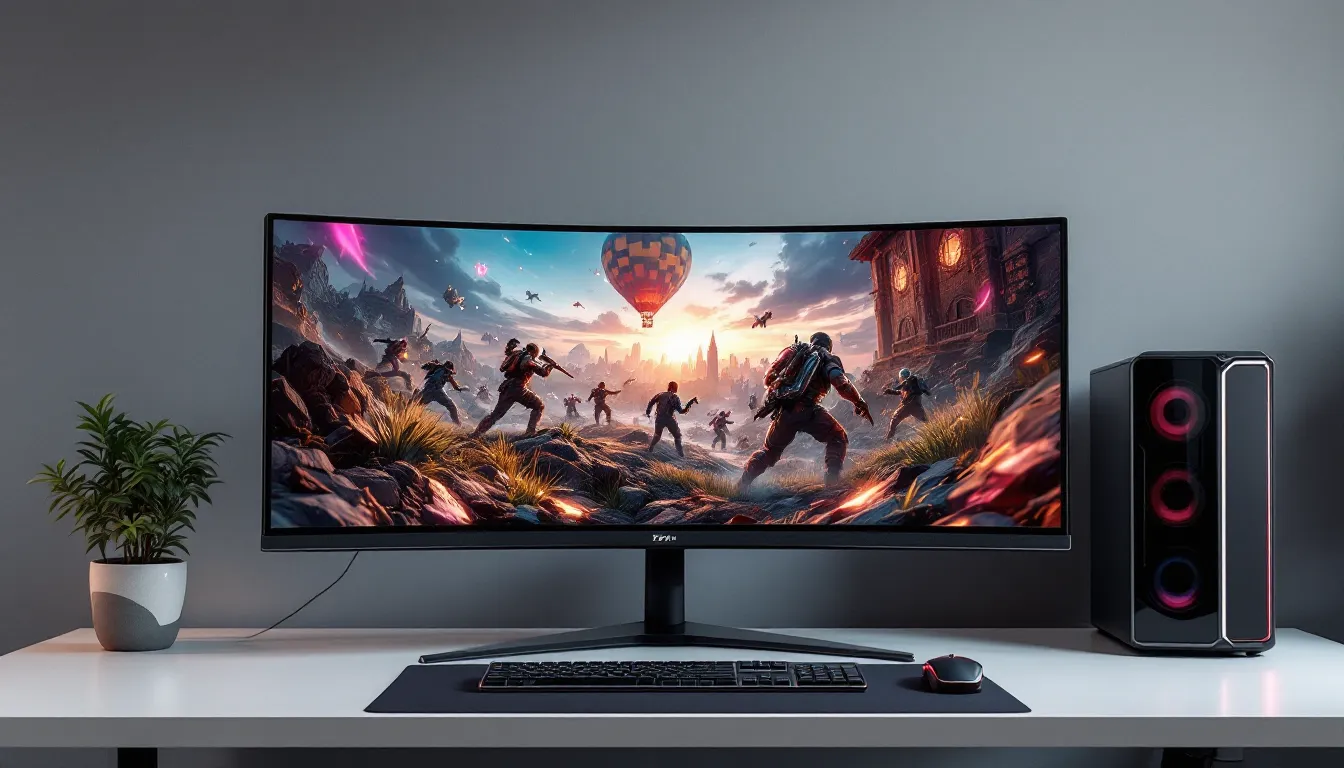
A 34-inch gaming monitor isn’t just a larger screen, it’s a fundamentally different way to play. The ultrawide format has gone from a niche luxury to a serious competitive advantage in everything from tactical shooters to open-world exploration. Whether you’re grinding ranked matches or streaming to your community, a 34-inch gaming monitor can transform how you experience your favorite titles. By 2026, the technology has matured significantly, with options ranging from budget-friendly picks to premium displays that cost as much as a full gaming PC. This guide covers what you actually need to know: the specs that matter, the monitors worth buying, and how to make sure your setup can actually handle one.
Key Takeaways
- A 34-inch gaming monitor with its ultrawide 21:9 aspect ratio provides 33% more horizontal screen space than standard 27-inch displays, giving competitive and immersive gameplay advantages in both esports and open-world titles.
- High refresh rates (144Hz or higher) paired with sub-2ms response times and G-Sync/FreeSync support are essential for competitive gaming, while casual players can achieve smooth performance with budget-friendly 100Hz models under $600.
- GPU power significantly impacts a 34-inch gaming monitor’s performance; an RTX 4070 or equivalent handles 100+ FPS at high settings, while RTX 4080+ is needed for sustained 144Hz gameplay at 3440×1440 resolution.
- Panel technology choices matter: IPS panels suit streamers and content creators for color accuracy, VA panels excel in dark competitive games with superior contrast, and premium OLED options deliver true blacks but carry burn-in risks and higher costs ($1000+).
- Always verify game compatibility with the 21:9 ultrawide format before purchasing, use DisplayPort 1.4 for gaming to avoid the 100Hz HDMI limitation, and position yourself 24–28 inches from the curved screen to maximize ergonomic benefits and minimize eye strain.
What Makes 34-Inch Monitors Perfect For Gaming
Immersive Ultrawide Aspect Ratios And Field Of View
The standard ultrawide aspect ratio for 34-inch monitors is 21:9, which gives you roughly 33% more horizontal screen real estate than a 27-inch 16:9 display. That extra width translates directly to peripheral vision in games, enemies don’t just pop in from off-screen, you see them coming. In competitive titles like Valorant or CS2, this means genuinely spotting threats earlier. In Elden Ring or Baldur’s Gate 3, it means seeing more of the environment without panning the camera constantly.
The immersive feeling is real but worth managing expectations: not every game supports 21:9 natively. Many AAA titles run fine, but you might get black bars on the sides or stretched imagery depending on the engine. Developers have gotten better about supporting ultrawide, but it’s still worth checking your favorite game’s compatibility before dropping $400+ on one.
High Refresh Rates For Smooth, Competitive Gameplay
A 34-inch gaming monitor worth buying runs at 100Hz or higher, many top-tier models hit 144Hz or 165Hz now. This matters. At 144Hz, everything from mouse movement to ability animations feels snappier than 60Hz. The difference between 100Hz and 144Hz is noticeable if you’re sensitive to smoothness: between 144Hz and 165Hz, most people won’t detect it in real gameplay, but it’s there.
The catch is that pushing high frame rates on ultrawide demands serious GPU power. A RTX 4070 or RTX 4080 can sustain 100+ FPS in demanding titles at 3440×1440 (the common ultrawide resolution), but a RTX 4060 will struggle. This is why refresh rate pairs with GPU requirements, they’re linked considerations, not independent specs.
Curved Displays And Ergonomic Advantages
Nearly all 34-inch gaming monitors arrive curved, with typical curvatures ranging from 1000R to 1800R (lower number = tighter curve). The curve wraps the screen around your eyes, which naturally reduces the physical distance your eyes need to travel to focus on different parts of the screen. This genuinely reduces eye strain on longer sessions, your eyes don’t have to refocus as much when shifting from center to edge.
Beyond comfort, the curve makes the ultrawide format feel less “wide and flat” and more immersive. It’s a subtle psychological effect, but gamers notice it. Just don’t sit too close, most 34-inch curves are designed for a viewing distance of 24–28 inches. Closer than that, and the edges distort noticeably.
Key Specs And Features To Consider
Resolution And Pixel Density
The standard resolution for 34-inch ultrawides is 3440×1440, which delivers solid pixel density at typical viewing distances, about 110 PPI. That’s sharper than a 1440p 27-inch (109 PPI) but not as dense as a 4K 27-inch (163 PPI). It’s a practical middle ground: sharp enough that text and UI elements look clean, but not so demanding that a 2–3-year-old GPU chokes on it.
A few higher-end models bump to 3440×1600, adding an extra 160 vertical pixels. In practice, this mostly benefits productivity (extra room for toolbars, timelines) more than gaming. For pure gaming, 3440×1440 is the sweet spot in 2026.
Panel Technology: IPS, VA, And OLED Options
Three panel types dominate the ultrawide market:
IPS panels are the standard. They offer excellent color accuracy, wide viewing angles, and typically 1ms response times (gray-to-gray). Popular among streamers and content creators who care about color grading. Downside: mediocre contrast ratios (typically 1000:1), which makes blacks look grayish compared to VA.
VA panels deliver superior contrast (3000:1 or higher) and deeper blacks, making them king for immersion in dark games. Response times used to be sluggish (4-8ms), but modern VA panels hit 1-2ms. Trade-off: narrower viewing angles than IPS, so if you’re sitting off to the side, colors shift.
OLED options started arriving in 2025–2026 on the premium end. True blacks (infinite contrast), perfect colors, and snappy response times. The downside is price (expect $1000+) and potential burn-in risk on static UI elements if you leave a game paused for hours. For competitive esports with constant motion, OLED shines. For productivity users with static taskbars, IPS or VA are safer bets.
Steam Deck players and retro enthusiasts should note that OLED is only appearing on high-end 34-inch models: most budget options stick to IPS.
Refresh Rates, Response Times, And Adaptive Sync
Refresh rates on 34-inch gaming monitors range from 100Hz to 165Hz. As mentioned, 144Hz is the practical sweet spot for high-end gaming without requiring $2000+ worth of GPU. Some newer budget models sit at 100Hz: that’s fine for casual play, but competitive players will feel the difference.
Response time matters less than people think at 100Hz+, but it’s still worth checking. 1ms (gray-to-gray) is the gold standard and what you’ll find on IPS and OLED panels. VA can hit 1-2ms now. Anything above 4ms feels sluggish in fast-paced games.
Adaptive sync is essential: look for G-Sync (NVIDIA) or FreeSync (AMD). These eliminate screen tearing by syncing the monitor’s refresh rate to your GPU’s output frame-by-frame. On a 144Hz ultrawide, the difference between tearing and G-Sync is night and day. DisplayPort 1.4 support is standard on modern 34-inch monitors: HDMI 2.1 is less common but nice to have for console gaming or future flexibility.
Recent reviews from RTINGS break down response time testing methodologies in detail if you want to dig deeper into how these specs translate to real gameplay feel.
Best 34-Inch Gaming Monitors For Different Use Cases
Top Choices For Competitive Esports
Competitive esports players prioritize response time, refresh rate, and input lag, usually in that order. Color accuracy is a afterthought.
ASUS ROG Swift PG349Q (144Hz, 1ms, IPS, ~$800): The old standard. Still solid. 144Hz is plenty for esports, response time is fast, G-Sync included. Downside: 2023 design, so newer models offer better HDR support. Worth it if you find a sale.
LG UltraGear 34UP550 (144Hz, 1ms, IPS, ~$900): Newer than the ASUS. Better build quality, similar performance. Added USB-C with 90W power delivery if you’re plugging in a laptop. Esports-focused without unnecessary extras.
MSI MPG 341CQP (165Hz, 1ms, VA, ~$1200): The aggressive pick. 165Hz is harder to maintain on a 3440×1440 panel, but if your GPU can push it, the panel’s improved contrast makes dark games (tactical shooters with shadowy maps) easier to read. VA’s narrower viewing angles don’t matter when you’re locked in at center.
Competitive players should focus on 100Hz or higher, sub-2ms response time, and G-Sync or FreeSync support. Anything else is marketing noise.
Premium Options For Content Creators And Streamers
Content creators need color accuracy, screen real estate (for toolbars, timeline, chat), and often dual input (gaming rig + streaming PC).
BenQ EW3480UC (60Hz, IPS, USB-C 65W, ~$600): Not a gaming monitor strictly, but beloved by streamers who also play. The 60Hz limitation stings for anything faster-paced, but USB-C with video input means one cable to a laptop. The height adjustment and swivel are better for desk ergonomics than gaming monitors typically offer. Excellent color calibration out of box.
LG 34UP550-W (60Hz, IPS, USB-C 90W, ~$800): Similar positioning to the BenQ. Slightly better brightness, same USB-C input flexibility. Some streamers run a secondary gaming PC at the edge and use the main input for content work.
Dell S3423DWC (75Hz, Nano IPS, USB-C 90W, ~$900): The modern choice. 75Hz is enough for non-competitive gaming, Nano IPS color is excellent, and the height-adjustable stand doesn’t suck. USB-C dock built in. Aimed squarely at “creator who plays games,” not “gamer who streams.”
Creators: If gaming is 50%+ of your use, bump to a 100+ Hz gaming monitor with good color. If gaming is secondary, these productivity-first ultrawides are smarter buys.
Budget-Friendly Alternatives For Casual Gamers
Casual gamers care about immersion and value. They’ll accept lower refresh rates and mediocre color if it means saving $300.
Gigabyte M34WQ (144Hz, 1ms, VA, ~$500): Found this hitting sales constantly in 2025–2026. 144Hz is solid for the price, VA contrast is excellent, and the stand is basic but functional. Downside: no USB hub, sparse port selection. If you’re running a console or budget PC, this is the sweetspot.
MSI MPG 341WPQ (100Hz, VA, ~$400): The entry point. 100Hz is smooth enough for casual play, response time is acceptable (around 2ms), and the curve is comfortable. Missing some gaming bells and whistles (no height adjustment), but you get a monitor for the price of a game.
LG 34UP550-B (budget variant, if found) (100Hz, IPS, ~$600): Older stock from 2024–2025 sometimes drops to this price. Not the latest tech, but proven reliable. 100Hz is genuinely fine if you’re not chasing ranked ratings.
According to TechRadar, value models often go on sale during seasonal events, so patience pays if budget is tight.
Casual gamers don’t need 165Hz or premium color grading. 100Hz, basic G-Sync, and a sub-$600 price point makes ultrawide gaming accessible.
Performance Optimization And Compatibility
GPU Requirements And Frame Rate Expectations
A 34-inch gaming monitor at 3440×1440 is roughly 1.5x more demanding than a 2560×1440 27-inch, and about 2.3x more demanding than 1080p. Frame rates don’t scale linearly with resolution, so exact numbers vary by game and graphics settings, but here’s the practical breakdown:
For 100Hz sustained (high settings):
- RTX 4070 / RX 7800 XT: Solid choice. Handles most AAA games at high settings and hitting 100+ FPS.
- RTX 4080 / RX 7900 XT: Overkill for 100Hz, but gives you room for max settings + ray tracing.
- RTX 4090: Future-proofs you. Handles anything at ultra settings.
For 144Hz sustained (high-to-ultra settings):
- RTX 4080 / RX 7900 XT: Minimum realistic spec. Even then, you’ll dial back settings in demanding titles (Black Myth: Wukong, Alan Wake 2).
- RTX 4090 / RX 7900 XTX: Required for max settings across the board.
For 165Hz:
- RTX 4090 only, realistically. And even then, DLSS 3 or FSR 3 frame generation helps.
CPU matters too: pair your GPU with a modern CPU (Ryzen 7 5700X3D or better, Intel Core i7-13700K or better). CPU bottlenecks are real on ultrawide, especially in open-world games where draw calls spike.
If your GPU is older (RTX 3070, RX 6800 XT), you’ll still get playable performance on a 34-inch at 1440p, but you’ll be dialing back ray tracing and hitting 80–100 FPS instead of 144. That’s not a dealbreaker for casual gaming, just know what to expect.
Connectivity And Mounting Solutions
Most 34-inch gaming monitors ship with:
- 2x DisplayPort 1.4 (the primary input for gaming)
- 2x HDMI 2.0 or 2.1 (console-friendly, but HDMI 2.0 maxes at 100Hz on ultrawide)
- USB 3.0 hub (usually 2–4 downstream ports)
- 3.5mm audio jack (built-in speakers are mediocre: headphones or external speakers recommended)
- Optional: USB-C with video input (higher-end productivity models)
For PC gaming, use DisplayPort exclusively. It supports 144Hz+ on 3440×1440 without issue. HDMI will work but caps out at 100Hz on most 34-inch monitors.
Console players (PS5, Xbox Series X): You’ll want HDMI 2.1 support to hit 120Hz on console games. Most gaming ultrawides have at least one HDMI 2.1 port now. Check the specs before buying if console is part of your plan.
For mounting, VESA 100×100 is standard, so any quality monitor arm will work. The weight of 34-inch displays ranges from 15–20 kg depending on the model. A dual-monitor arm designed for heavier loads works best. Many gamers stick with the included stand since ultrawide monitors have inherently good weight distribution once mounted.
A quick look at PC World hardware guides confirms that DisplayPort 1.4 remains the standard for high-refresh ultrawide gaming in 2026.
Common Issues And Troubleshooting Tips
Input lag spikes with G-Sync enabled: This is rare but happens on older drivers. Solution: Update GPU drivers, then toggle G-Sync off and on in NVIDIA Control Panel. If it persists, reduce refresh rate by 10Hz as a temporary fix.
Games running stretched or with black bars: Game doesn’t support 21:9. Most modern engines do, but some older ports don’t. Check PCGamingWiki for that specific title. Workaround: Use a custom resolution tool like CustomResolution Utility (CRU) or NVIDIA’s resolution scaling, though this can introduce minor performance overhead.
One side of the screen looks darker (color shift): VA panels have this issue if you’re sitting off-angle. Solution: Sit more centered (24–28 inches from screen), or bump up brightness by 5–10 points. IPS and OLED don’t have this problem.
Monitor flickering or random input dropout: Usually a DisplayPort cable issue. Solution: Swap to a different DP cable (especially if it’s bundled with the monitor, cheap cables are common). If it continues, test with a different DisplayPort slot on your GPU.
High refresh rate (144Hz+) causes weird artifacting in some games: Some engines don’t handle ultrawide + high refresh well on first launch. Solution: Lower refresh to 120Hz temporarily, then upgrade GPU drivers. If it’s a console port (happens often), the issue usually clears after a patch.
Curved screen causes text to look warped, especially at edges: This is normal and unavoidable on curved ultrawides. Your brain adapts within a few hours. If it bothers you after a week, a flat ultrawide exists (rare, more expensive) but you lose the ergonomic benefits of curvature.
Monitor won’t reach advertised brightness in HDR: Many games don’t full-use HDR on ultrawide yet. This is improving in 2026, but some titles still treat HDR as secondary. Make sure HDR is enabled in game settings, Windows display settings, and GPU control panel, all three need to sync.
Conclusion
A 34-inch gaming monitor is a significant investment, but it delivers genuine gameplay advantages that go beyond bragging rights. The immersive ultrawide format, high refresh rates, and modern display tech create a competitive edge in esports and a more engaging experience in single-player games.
What matters most depends on your priorities: competitive players need 144Hz+ and sub-2ms response times. Streamers benefit from USB-C inputs and height-adjustable stands. Casual gamers get tremendous value from 100Hz budget options. The technology is mature enough now that even entry-level 34-inch monitors are genuinely good.
Before you buy, confirm your GPU can handle the resolution and refresh rate you want. Pair that with a compatible DP 1.4 cable, set G-Sync or FreeSync in your GPU control panel, and you’re ready to go ultrawide. The learning curve is minimal, most gamers adapt within the first gaming session.
The 34-inch ultrawide category has expanded significantly since 2024, with options at every price point. Whether you spend $400 or $1200, the monitor you buy will be more capable than last generation’s premium option. That’s the state of the market in 2026: good baseline quality across the board, with premiums going toward specific features (OLED, 165Hz, USB-C) rather than basic functionality.
Grab one, fine-tune your GPU settings, and enjoy seeing more of your game world.